Phone Orders
Phone Orders for SFCC
For orders placed by customers over the phone, we offer a proprietary Webid phone solution. The overview and steps for integrating are listed below.
Overview
The Forter Customer Web Id Phone solution allows Forter to provide a Fraud decision on orders that your customer support team may place on behalf of a customer over the phone. When a customer calls into your support center to place an order, your Customer support rep should instruct the customer to visit your site and read the 9-digit Customer Web Id that appears at the bottom of your website's screen. Your Customer support representative should then enter this number into a dedicated customerWebId field in your SFCC admin so that it is included with the rest of the order data. This 9-digit Customer Web Id is unique to each end-user and will help Forter's models in connecting certain cyber and behavioral data points to the order being placed over the phone.
Integration Steps
Step 1: Add the JavaScript to the Front end of your site
In the case of SFCC, the JavaScript should automatically get injected into your site's front end via the checkout.isml and the page.isml templates. However, you may need to manually add the JS by pasting the script from the portal into the relevant closing </html> body tags
Step 2: Render the Customer Web Id on the website's FrontEnd
Forter's JavaScript will automatically render a 9-digit code that needs to be exposed to the customer on the site when they view the page. You can control where on the page this Customer Web Id is exposed and how it is styled. It should be visible to the customer so that that they can read it to your customer support rep when they place an order over the phone
Step 3: Handle input of the Customer Web Id
In our SFCC admin, you'll need to create a field for your Customer Support team to enter the Customer Web Id that the customer reads when placing an order over the phone. This field should only be visible or accessible to dedicated customer support staff. If you already have a dedicated interface in your SFCC business manager for placing customer orders, we recommend adding the Customer Web Id input field there.
Step 4: Send the Customer Web Id to Forter
In your ForterOrder.js file of the cartridge, add logic to update the orderType, set the connectionInformation object fields to empty strings, and include the Forter Customer Web Id in the API call that is made to Forter for a decision. For example, in the ForterOrder(args, request, authorizationStep) function, you can include logic to determine orderType, include the phoneOrderInformation.customerWebId, phoneOrderInformation.callerId, and modify the connectionInformation object based on whether the WebId field is populated and the order is a Phone order. The example code below shows where this logic is recommended but it should be further modified based on your exact checkout flow and accepted order types.
function ForterOrder(args, request, authorizationStep) {
    var ForterLogger = require('*/cartridge/scripts/lib/forter/ForterLogger');
    var log = new ForterLogger('ForterOrder.ds');
    var order = args.Order;
    var paymentInstruments = order.getPaymentInstruments();
    var payment = null;
    var authResponse = null;
    var shipment = null;
    var i;

    for (i = 0; i < paymentInstruments.length; i++) {
        var paymentInstrument = paymentInstruments[i];

        if (paymentInstrument.paymentMethod === 'CREDIT_CARD') {  // adjust to the existing payment instruments
            payment = paymentInstrument;
            authResponse = JSON.parse(paymentInstrument.custom.authorize_net_authorization_json);
        } else if (paymentInstrument.paymentMethod === 'PayPal' || paymentInstrument.paymentMethod === 'BML') {  // adjust to the existing payment instruments
            payment = paymentInstrument;
            authResponse = paymentInstrument.custom.paypal_transaction_details_response;
        }
    }

    function determineOrderType(order) { // example function to determine orderType
        if (order.webId && order.webId.length === 9) {
            return 'PHONE';
        } return 'WEB';
    }

    function connectionInformationRenderer(order, request) { //example function for webId
        if (order.webId) {
            this.customerIP = '';
            this.userAgent = '';
            this.forterTokenCookie = '';
        }
        this.customerIP = request.httpRemoteAddress;                    // Required
        this.userAgent = request.httpUserAgent;
        this.forterTokenCookie = '';

        for (var i = 0; i < request.httpCookies.cookieCount; i++) {
            if (request.httpCookies[i].name === 'forterToken') {
                this.forterTokenCookie = request.httpCookies[i].value;   // Required
            }
        }
    }

    this.phoneOrderInformation = {
	    customerWebId = order.webId.trim();  // webId field for phone orders
        callerId = order.callerPhone; // phone number used when customer called to place an order
        callerFirstName = order.phoneFirstName[0] || ''; // modify to pass first name of caller
        callerLastName = order.phoneLastName[1] || ''; // modify to pass last name of caller
	};
    this.orderId = order.originalOrderNo;
    this.orderType = determineOrderType(order);
    this.timeSentToForter = (new Date()).getTime();
    this.checkoutTime = Number((order.creationDate.getTime() / 1000).toFixed());    // Required //must be seconds, not milliseconds
    this.connectionInformation = connectionInformationRenderer(order, request);    // Required
    this.authorizationStep = authorizationStep;
}
Step 5: Test the flow
In your sandbox environment, add a 9-digit code that is rendered by the JS on the front end of your site to the dedicated Customer Web Id field that you've created in your SFCC business manager.
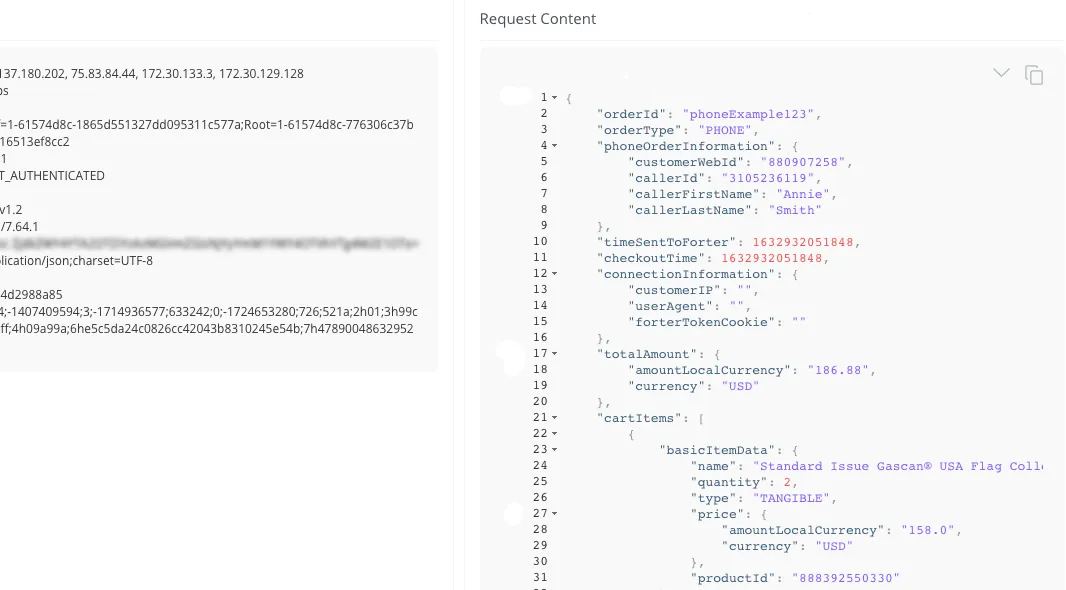
Submit the rest of the order with the current phone order placement flow and then check the formatting of the API request in your Forter API Request Viewer
In the request viewer, the "connectionInformation" object should have primarily empty strings, the "orderType" should be "PHONE" and the customerWebId and callerFirstName, callerLastName, and callerId, should be visible in a dedicated "phoneOrderInformation" object.