Configure Actions
Forter Actions and Configurations
Step 1: Configure your Forter Actions
Navigate to the Forter Shopify Settings screen. Configure the app settings according to your business preferences. You can choose what action is taken in each case as a result of the different possible Forter fraud decisions.
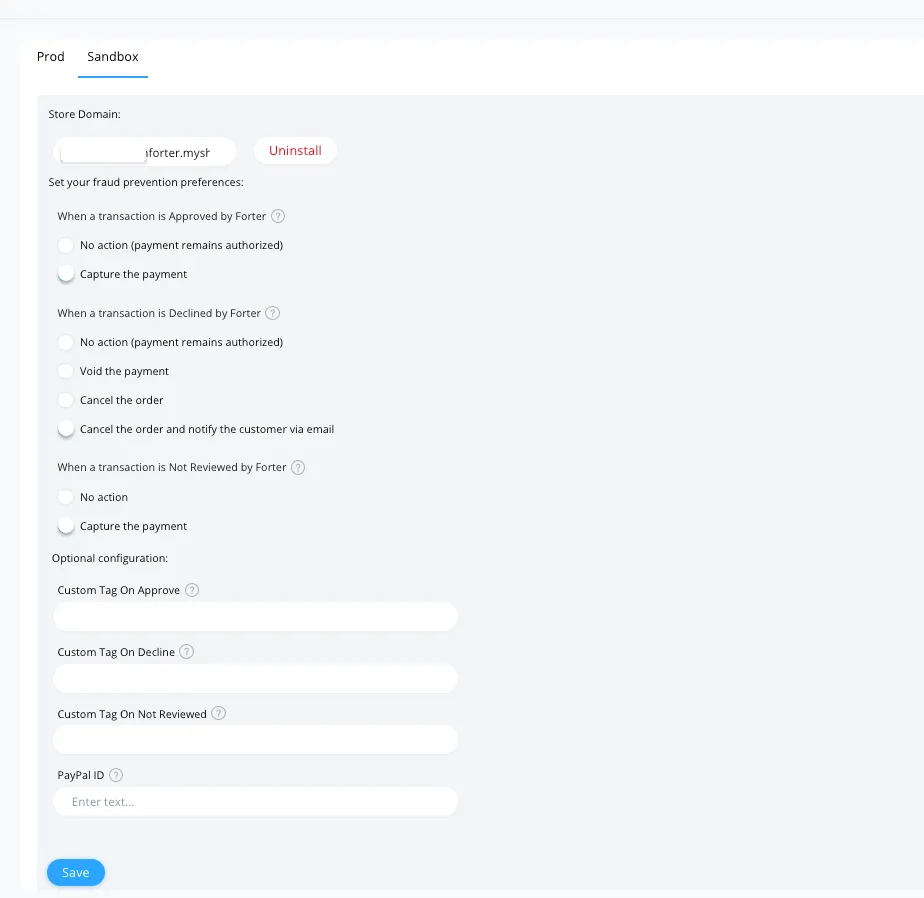
Actions on Approve
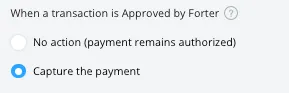
If Forter approves the transaction, you can choose ONE of the following options:
- Capture the Payment: allow Forter to capture the payment automatically on behalf of your store
- No Action: The Forter plugin will not capture payment and leave the payment authorized
Actions on Decline
When Forter declines the transaction you can choose one of several actions:
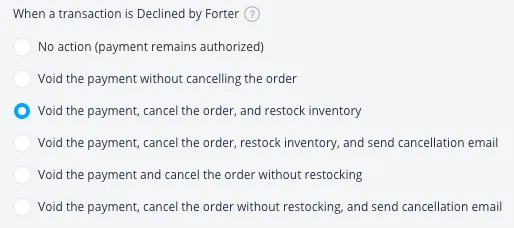
- No action: No further action is taken. The payment remains authorized (funds are held) and merchant can manually review the order. Payment authorization expires automatically after a few days.
- Void the payment without cancelling the order: Automatically void the payment authorization. This does NOT cancel the order in Shopify, so merchant will need to manually cancel the order.
- Void the payment, cancel the order and restock inventory: This action will void the payment authorization, cancel the order, and restock the order's items within Shopify.
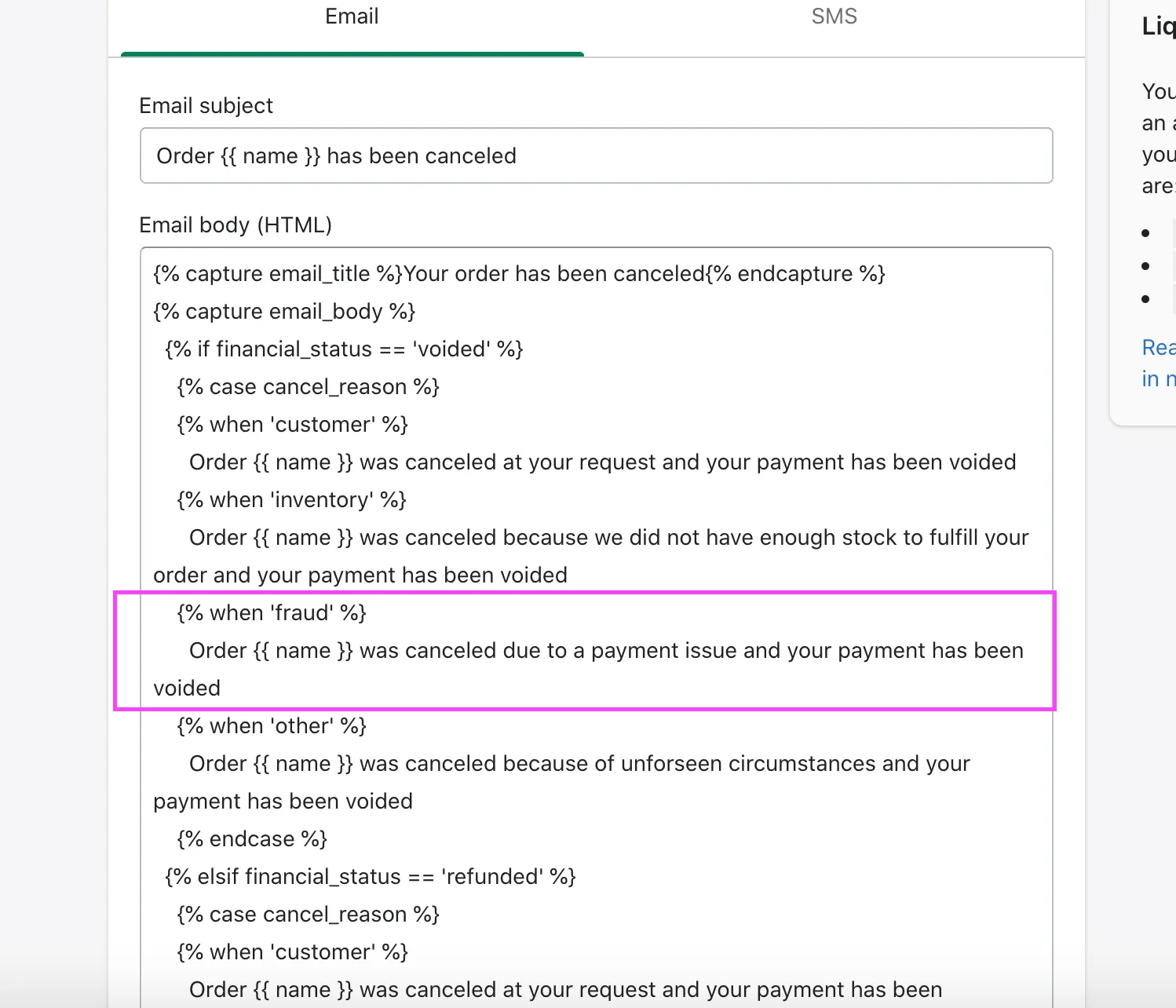
- Void the payment, cancel the order, restock inventory, and send cancellation email: (Recommended) This option will cancel the order, void the payment, restock the items AND send the customer an email regarding the cancellation. You can use Shopify’s template email to notify the buyer there was an issue with his/her order. The email can be customized at <MY-SHOP-DOMAIN>/admin/email_templates/order_cancelled/edit
- Void the payment and cancel the order without restocking: This action will void the payment authorization and cancel the order, but will not restock the order's items within Shopify.
- Void the payment, cancel the order without restocking, and send cancellation email: This option will cancel the order, void the payment AND send the customer an email regarding the cancellation, but will NOT restock the item in Shopify's inventory. You can use Shopify’s template email to notify the buyer there was an issue with his/her order. The email can be customized at <MY-SHOP-DOMAIN>/admin/email_templates/order_cancelled/edit
Declined Orders with Instant Fulfillment
If you have orders that fulfill instantly such as Digital Gift Cards or Donations, Forter's plugin will not be able to capture, cancel or void the order as Forter's actions are sent asynchronously. Merchants should update their fulfillment settings to "manual" to avoid automatically fulfilling orders and/or use Shopify Flow to automate a fulfillment for digital orders AFTER Forter has returned a decision.
Declined AmazonPay Orders
Due to AmazonPay's gateway policy, declined AmazonPay orders do NOT immediately cancel payment authorization. In the case of an AmazonPay order that is declined by Forter, we recommend avoiding an export or manual funds capture and instead allowing the funds authorization to expire after 7 days.
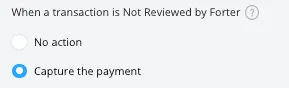
Actions on Not Reviewed
If there are certain payment methods that you do not want to receive a Forter decision such as PayPal, AfterPay, Bread, or certain types of transactions such as employee-generated or affiliate orders, Forter can return a "Not Reviewed" decision. For these cases, you can choose either of the followign:
- No Action: The Forter plugin will take no action.
- Capture the Payment: Forter will automatically capture the payment on behalf of your shopify store.
Refunds
Please note that the Forter Plugin does NOT currently refund payment for any orders it decisions. Please be sure to configure the relevant processes in your OMS or Shopify admin for cases where customers request or require a refund. We also recommend using the Manually Capture Payments option in your payments settings to avoid having to manual refund customers who receive a Forter decline decision.
Send Order Risk Assessment
Sending order risk assessments enhances how you can understand and manage fraud risks on Shopify orders. It integrates Forter risk assessments directly into Shopify order details, providing you with immediate access to comprehensive insights from Forter and making it easier to understand our fraud decisions.
Delay Order Actioning
Configure the Forter plugin to delay actioning on Shopify orders by a set number of minutes. Forter still returns a decision immediately, but the plugin holds the response before sending it back to Shopify. This allows automated workflows (inventory checks, shipping calculations, promotional code validations, etc.) to complete before any action is taken. The buyer experience is not affected—they still see the confirmation page immediately after checkout.
Set a delay period (in minutes) in your Shopify configuration.
- NOTE: By default, no delay is applied.
- Changes take up to 15 minutes to go live.
- Set to 0 or leave blank to disable.
Step 2: Configure in Shopify
Navigate to https://<YOUR-SHOP-DOMAIN>/admin/settings/payments and choose Manually Capture Payments in order to allow the Forter App configuration to control which payments are captured, in accordance with the Forter decision.
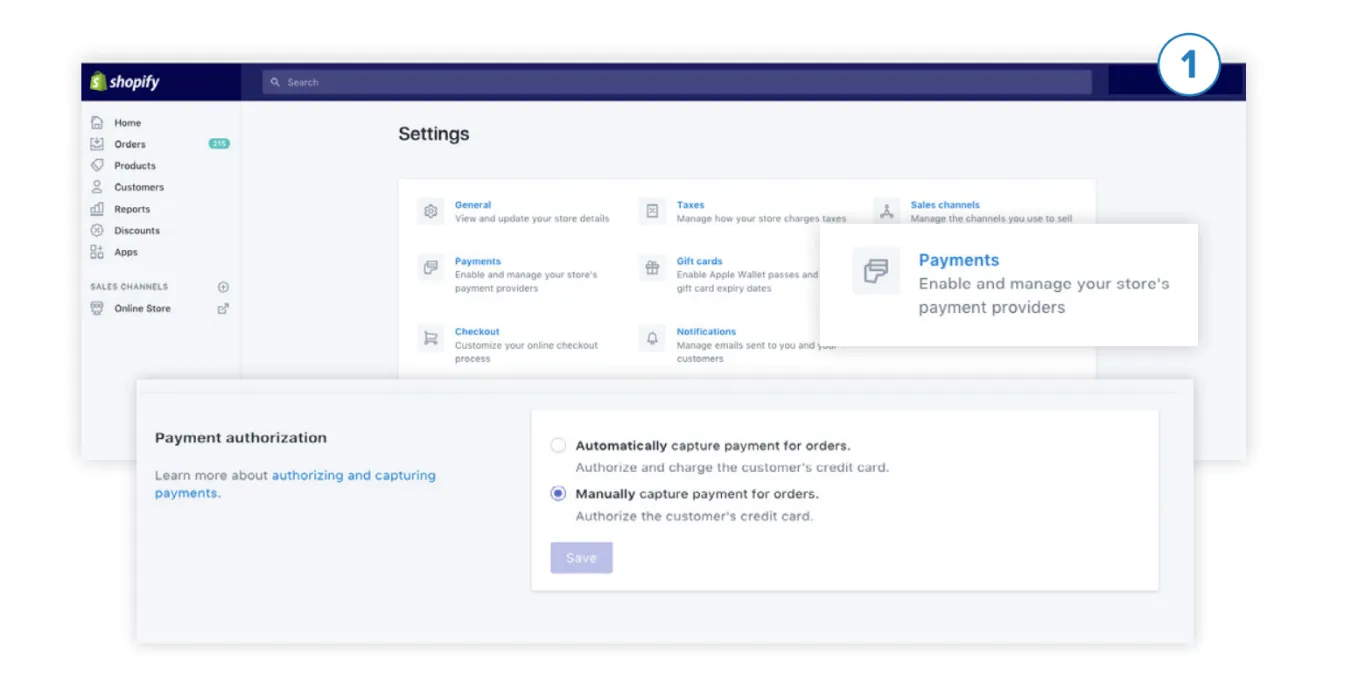
Manually Capture payments
Forter recommends selecting the manual capture option instead of the automatic capture. This allows for payments to be authorized but not automatically captured.
This setting is particularly relevant for decline scenarios and allows our merchants to avoid having to manually issue a refund in cases where an order has been declined by Forter but funds have already been captured. For more information on payment authorization and the different payment capture options, please see (Shopify's payment documentation - https://help.shopify.com/en/manual/payments/payment-authorization )