PayPal SFRA
PayPal SFRA Overview
The Forter SFRA cartridge has contains built-in functionality for saving your PayPal API responses. These responses include the:
- PayPal Transaction Details
- Capture Response
- Void Response
- Authorization Response
- Express Checkout Response
The PayPal data is stored as a JSON string in a custom attribute of the paymentInstrument object of your ForterOrder.ds file and each response is saved to a dedicated custom attribute.
Fort recommends that you save these attributes as a text type as the responses can contain up to 4,000 characters.
Mapping the PayPal response to the Payment instrument
In accordance with SalesForce Commerce Cloud SFRA/MFRA guidelines, the PayPal data should be stored on the Payment instrument and existing code in the cartridge should be overwritten accordingly. In cases where the storefront application has the same controllers or templates extended or replaced, all affected code modifications must be added to the top level cartridge of the storefront application.
1. Designate the PayPal Payment object
Similar to the credit card, the PayPal method should be a designated payment instrument in the ForterOrder(args) function of the ForterOrder.ds file.
Example:
function ForterOrder(args) {

    var log          = new ForterLogger("ForterOrder.ds"),
        order        = args.Order,
        site         = dw.system.Site.getCurrent(),
        paymentInstruments = order.getPaymentInstruments(),
        a            = null,
        authResponse = null,
        shipment     = null;

    for each (var paymentInstrument in paymentInstruments) {
        if (paymentInstrument.paymentMethod == 'CREDIT_CARD') {
            a = paymentInstrument;
            authResponse = args.CreditCardAuthResponse;
        } else if (paymentInstrument.paymentMethod == 'PayPal' || paymentInstrument.paymentMethod == 'BML') {
            a = paymentInstrument;
            authResponse = {}; // not necessary as this info can be retreived from a  instrument
        } else if (paymentInstrument.paymentMethod == 'GIFT_CERTIFICATE') { // optional if this is an accepted a  method in your store
        	a = paymentInstrument;
        	authResponse = args.GCRedemptionTransaction;
        }
    }
2. Map the PayPal Authorization Response to a dedicated Function
such as PayPal or Gift Cards should be mapped to their associated functions in the ForterOrder.ds and include the required fields listed in the Validation API Reference. In the below example, the PayPal datapoints are stringified and mapped to the dedicated PayPal (order, a) function.
function ForterPayPal(order, a ) {
   //var transactionDetails = {};
   this.payerId = a .custom.paypalPayerID
   this.payerEmail = order.customerEmail; //required
   this.payerStatus = "";
   this.payerAddressStatus = ""; //"CONFIRMED"
   this.paymentMethod = order.custom.paypalPaymentMethod; // ex. instant transfer
   this.paymentStatus = a .custom.paypalPaymentStatus.toUpperCase(); //"PENDING"
   this.payerAccountCountry = "US"; // do not hardcode if accepted from multiple countries
   this.protectionEligibility = a .custom.paypalProtectionEligibility.toUpperCase(); //"ELIGIBLE";
   this.correlationId = a .custom.paypalCorrelationId.correlationid; // ex. "fdshkj2390sdf";
   this.paymentId = "";
   this.authorizationId = a .custom.paypalAuthID; // ex. "2WC75407LV7300439";
   this.fullPaypalResponsePayload = {};
}
PayPal express
When integrating with Paypal, we suggest you modify your Papal Cartridge settings (in the Site Preferences -> Customer Site Preference Groups). This will allow Forter's cartridge to receive the relevant payment information and also allow you to automate whether a PayPal transaction is captured or cancelled and voided based on the Forter decision.
** Please note: Forter's cartridge does NOT handle the Billing Agreement checkout flow in the below example.
Step 1: Authorize before calling Forter
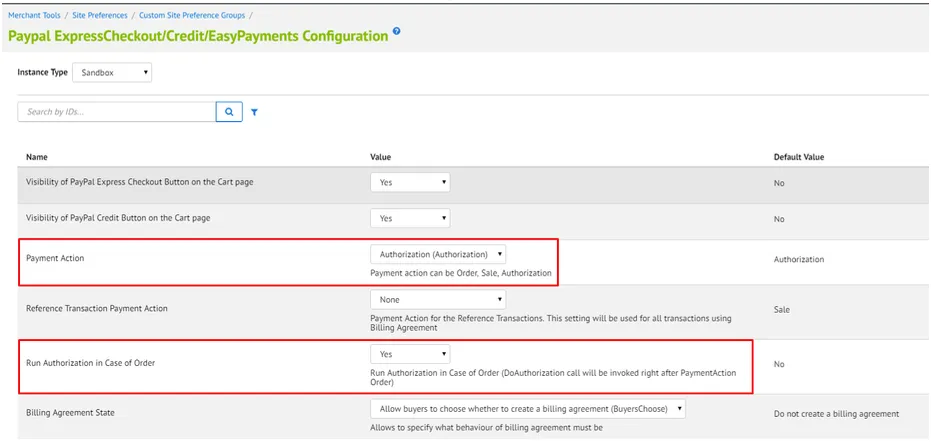
Update the Express Checkout to include Authorization before Forter is called. This can be done by setting the Payment Action setting to "Authorization" or by setting Run Authorization in case of Order to Yes.
Step 2: Review Billing information Settings
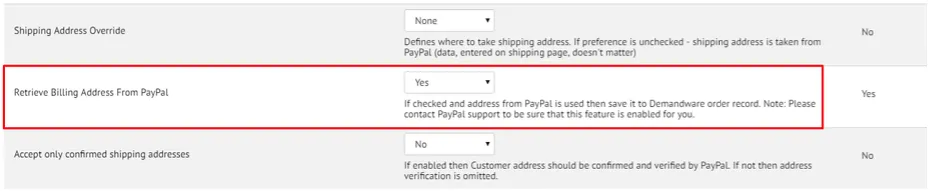
Make sure the Paypal cartridge is set to send customer billing information to Salesforce Commerce Cloud. Please note this configuration may need external permissions added by Paypal support to your Paypal account.
In order to handle the customized error massage configured in Forter business manager extension, particularly for cases when the PayPal payment processor is called via hooks (if your main site is built on controllers or SFRA), the int_paypal/cartridge/scripts/payment/processor/PAYPAL_EXPRESS.js must check if any error exists in pdict. For example in the if statement:
if(!empty(pdict.ForterResponse.PlaceOrderError)){
    return {error: true, fortererrorCode : pdict.ForterResponse.PlaceOrderERror};
} else if (
    (!empty(pdict.ForterResponse.JsonResponseOutput.actionEnum) && pdict.ForterResponse.JsonResponseOutput.actionEnum == 'DECLINED')
    &&
    (!empty(pdict.forterResponse.JsonResponseOutput.processorAction) && pdict.forterResponse.JsonResponseOutput.processorAction != 'skipCapture')
    ) {
        return {error: true};
    }
):
Step 3: Handle Custom Error Message
In order to handle the customized error message configured in your Forter business manager extension, the COPlaceOrder.js file must be adjusted to check if any error exists in the authorizationResult:
Inside the handlePayments(order) function
// within the handlePayments(order) function
if (authorizationResult.not_supported || authorizationResult.error) {
    if (!empty(authorizationResult.forterErrorCode)) {
        return {
            error           : true,
            forterErrorCode : authorizationResult.forterErrorCode
        };
    } else {
        return {error : true};
    }
}
Inside the Start() function
// inside the start() function
return {
    error: true,
    PlaceOrderError: new Status(Status.ERROR, handlePaymentsResult.forterErrorCode ? handlePaymentsResult.forterErrorCode.code : 'confirm.error.technical')
};
``