Front-end Integration
Forter JavaScript Snippet
The full JS snippet for both production and sandbox environments can be found here.
Make sure to use the correct script (sandbox vs production) depending on what environment you're integrating your script or pixel.
Shopify Pixel Integration (Checkout Extensibility)
All Shopify merchants should follow the below instructions for creating and enabling a Shopify Custom Pixel as well as pasting the Forter snippet into the native HTML for your respective Shopify checkout component. More information about Shopify's Custom Pixel framework can be found here.
Step 1: Paste the snippet into your Shopify Theme
- Navigate to this path: https://admin.shopify.com/store/<your-sandbox-shop.com>/themes and then select the theme.liquid option. Click the “Edit button to the right to access the HTML code.
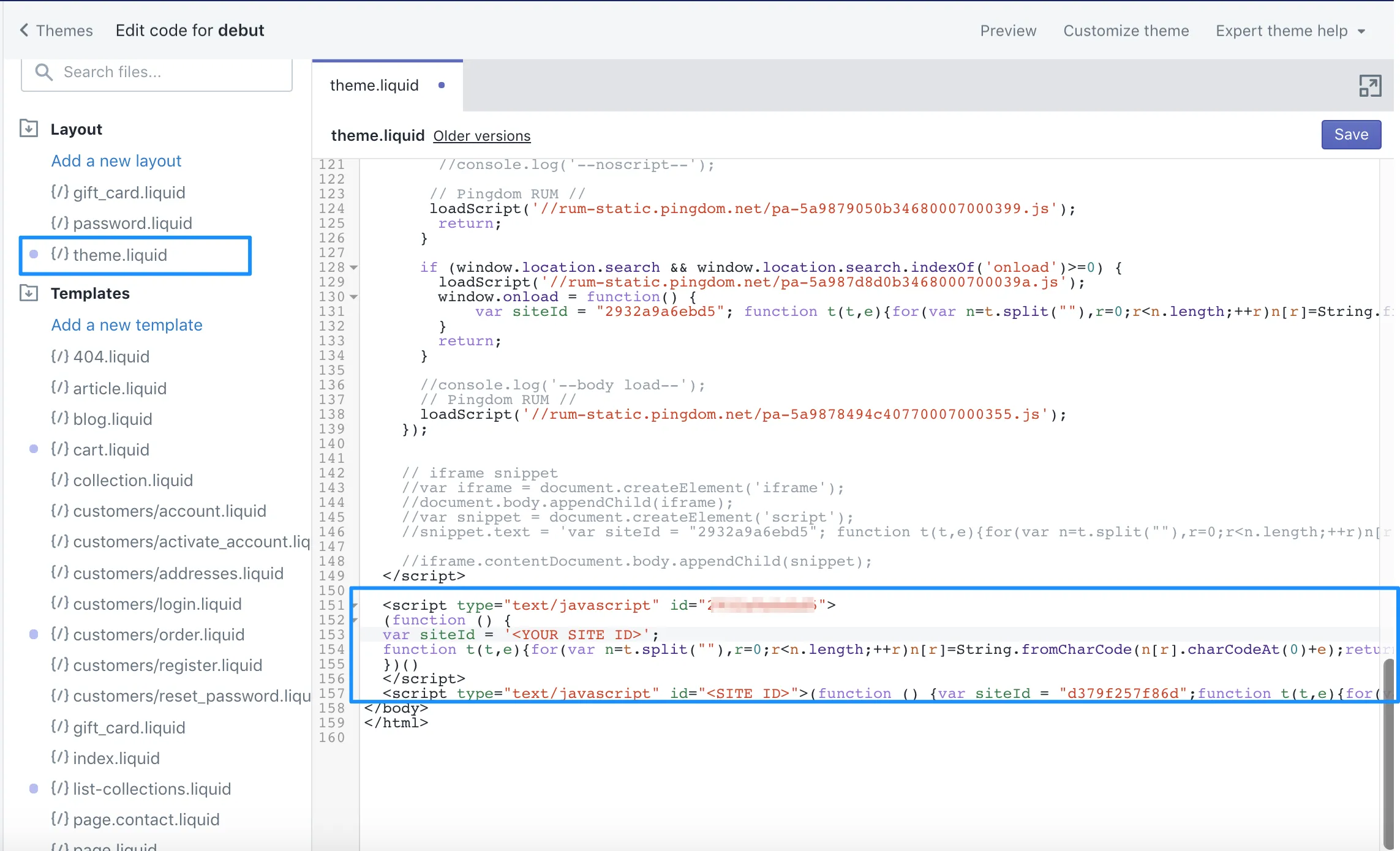
2. Copy & Paste the Forter JavaScript snippet into the editor. Make sure you're using the snippet with the siteId that corresponds to the Shopify environment you're adding the script to (i.e. "production snippet for your production store" or "sandbox snippet for your sandbox store")
3. Press Save to save your changes.
Step 2: Log into your admin
Log into your Shopify admin, go to Settings > Customer events and click on the Add custom pixel option.
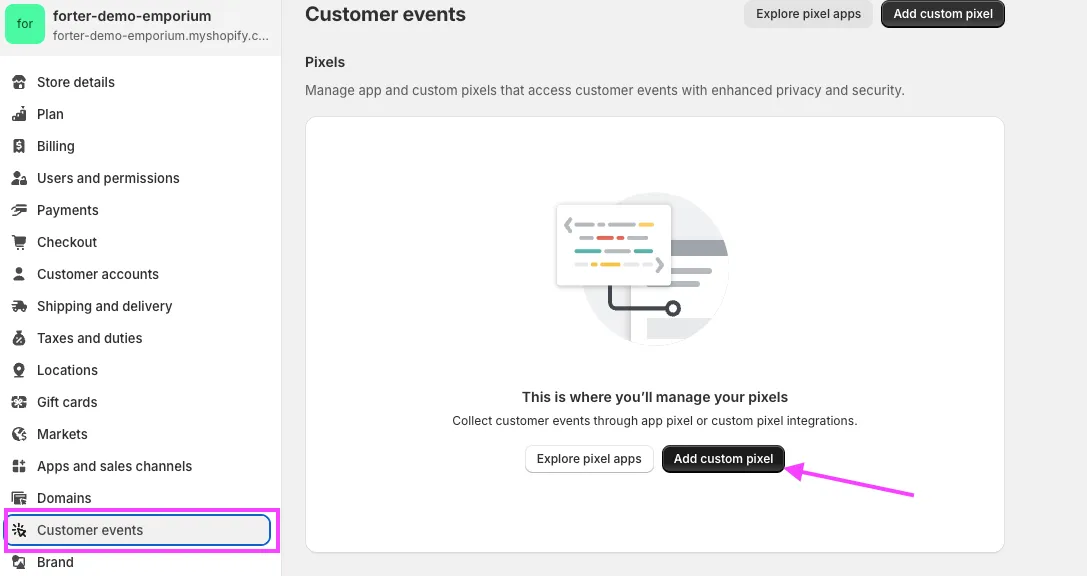
Step 3: Name your pixel
Name your snippet. If you enter the name of a custom pixel that already exists, then you'll be prompted to give your pixel a different name. Forter recommends "Forter snippet"
Step 4: paste your template and Forter site Id
- Click "Add pixel" to open the event editor.
- Go to the code window and paste and use the following template.
window.__api = api;
const script = document.createElement('script');
script.setAttribute('type', 'text/javascript');
script.setAttribute('id', '%SITE_ID%'); // where siteId is the siteId from your Forter portal (select sandbox or prod siteId according to the environment you're adding your pixel)
script.text = `%SNIPPET_CONTENT_FROM_PORTAL%`; // your Forter js snippet (select the sandbox or prod snippet depending on the env you're adding your pixel)
document.head.appendChild(script);
For the '%SITE_ID% field in the template, update it to the siteID value located in your Forter Portal Settings page. Be sure to be toggled to the appropriate portal environment so that you're using the correct siteId (production vs sandbox)
Step 5: Paste your Forter JavaScript Snippet
Once you've pasted the above template, go to the JavaScript integration page of your Forter portal. Have the script you're planning to add (sandbox or production) in view so that you're ready to paste it.
- Make sure you paste the entire snippet (%SNIPPET_CONTENT_FROM_PORTAL%) with the correct environment (Production or Sandbox) from the Forter portal but exclude the opening and closing <script> tags of the snippet
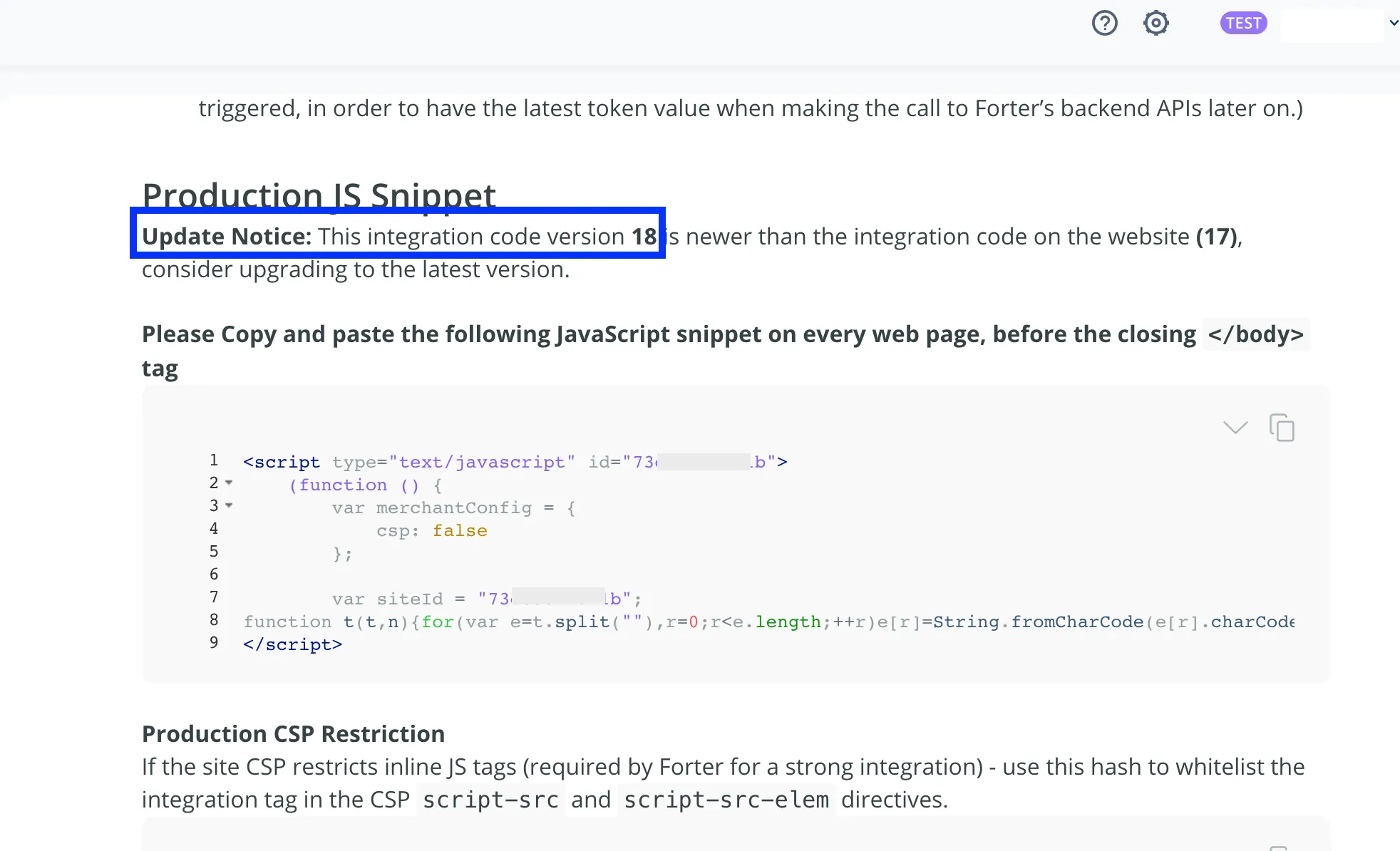
Step 6: Select Permission
In the Customer privacy section of your Shopify Pixel, select the following:
- Not required for the permission.
- Data Collected does not qualify as data sale
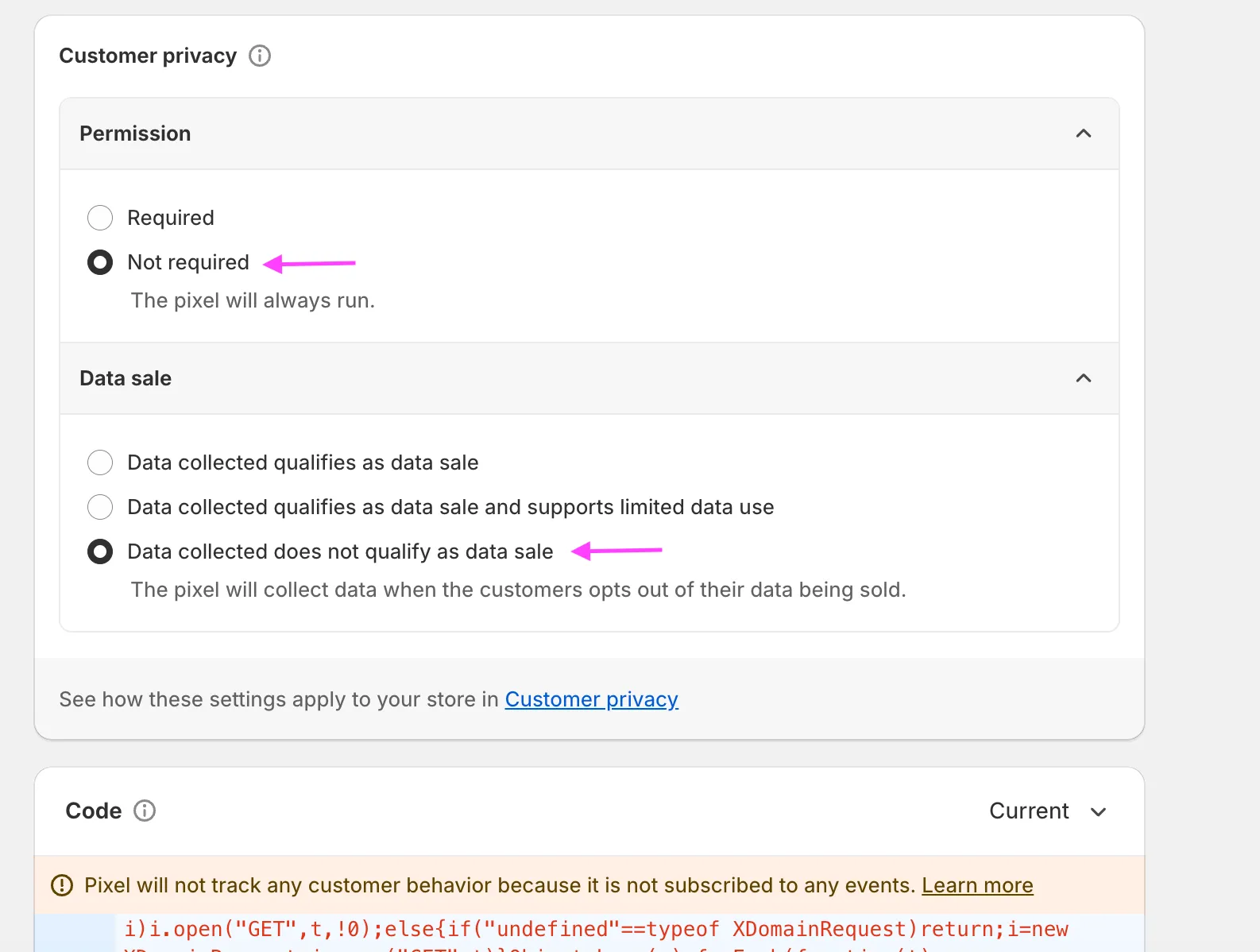
This will allow Forter's pixel to load even when a customer opts out of marketing or advertising targeting.
Step 7: Save and Activate
Click Save to save your custom pixel and then click "Connect pixel" to start tracking your events.
Testing your JS Integration
You can take the following steps to verify that the Forter JavaScript integration is collecting the relevant cyber and behavioral data on orders.
- Make sure your Forter team has activated the JS script - this means the cdn has been activated and the script can dynamically render a token and track relevant front end events
- Visit your website <your-site>.myshopify.com and place an order like a customer. Perform normal customer behaviors such as searching for a product, selecting a product size, and carting a product. Then proceed to checkout.
- Use the credit card or ShopPay (saved credit card) payment method. You can use any email address or one of Forter's test emails like [email protected] or [email protected] in the sandbox environment if you want to force a specific decision.
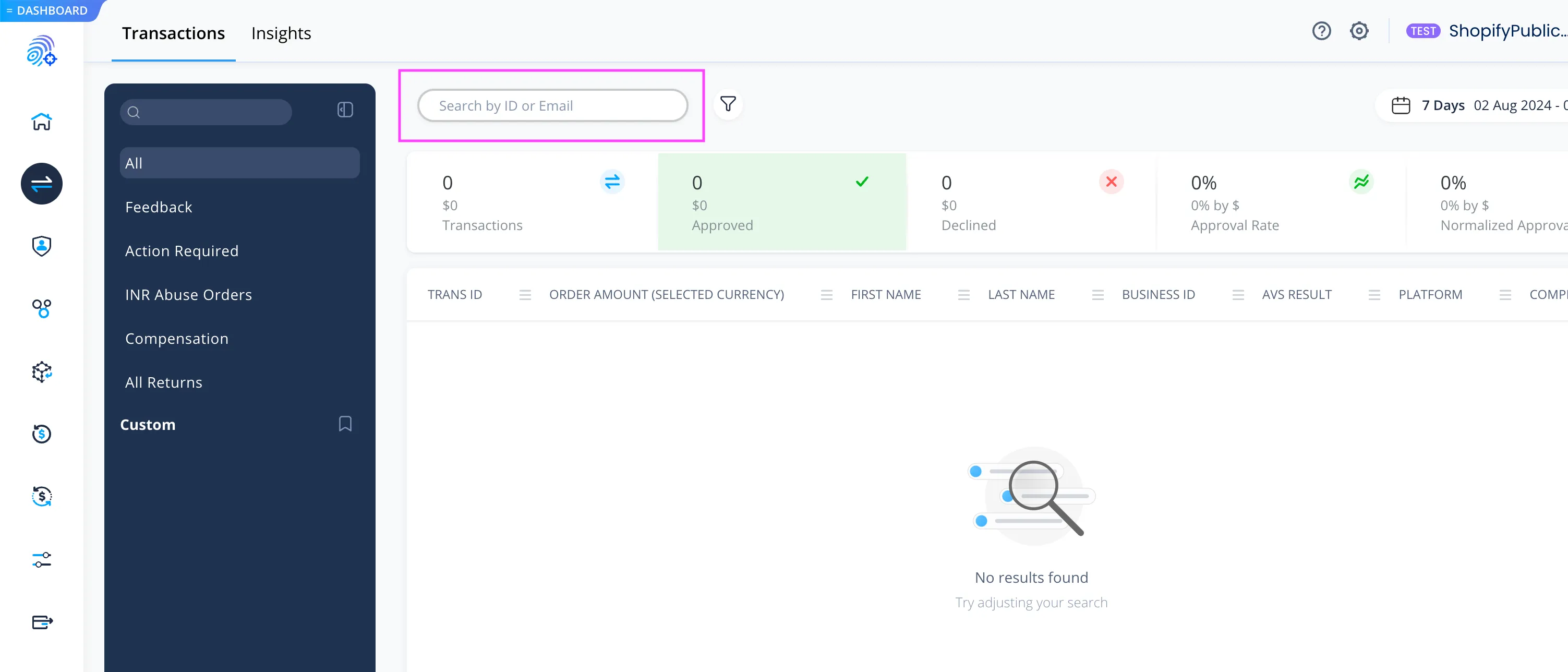
- Once you've placed the order, log into your Forter portal, and visit the Transactions tab and search for your test transaction by email or order Id.
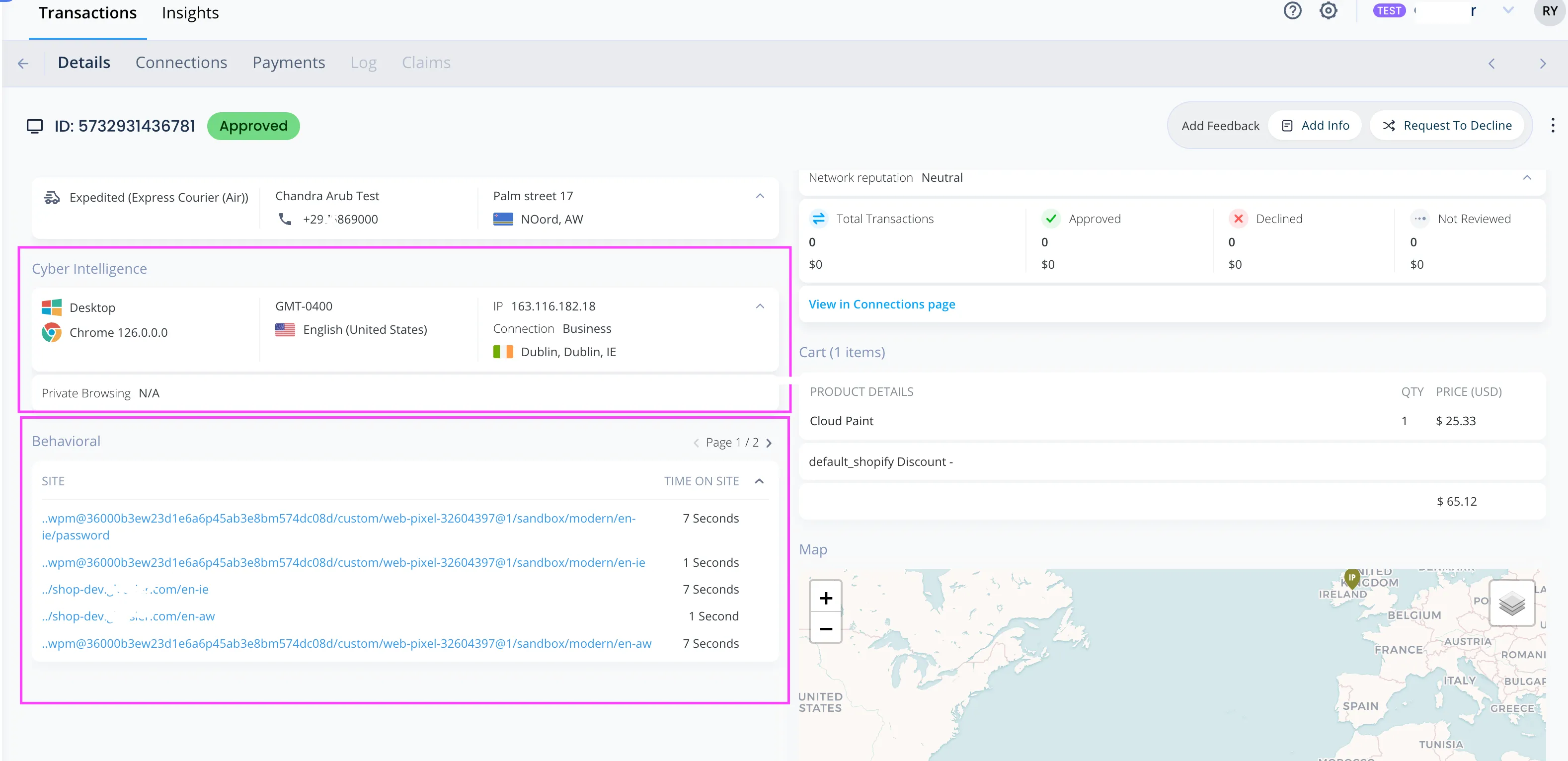
4. Once you've found the transaction, check the Cyber Intelligence and Behavioral sections of the detailed order view where you should see highlights of what the script and request headers of the order have collected.
5. Confirm with your Forter team - Let your Forter team know that you've completed this work and so that they can validate configurations as well.